
Two Parts of the Pivex App
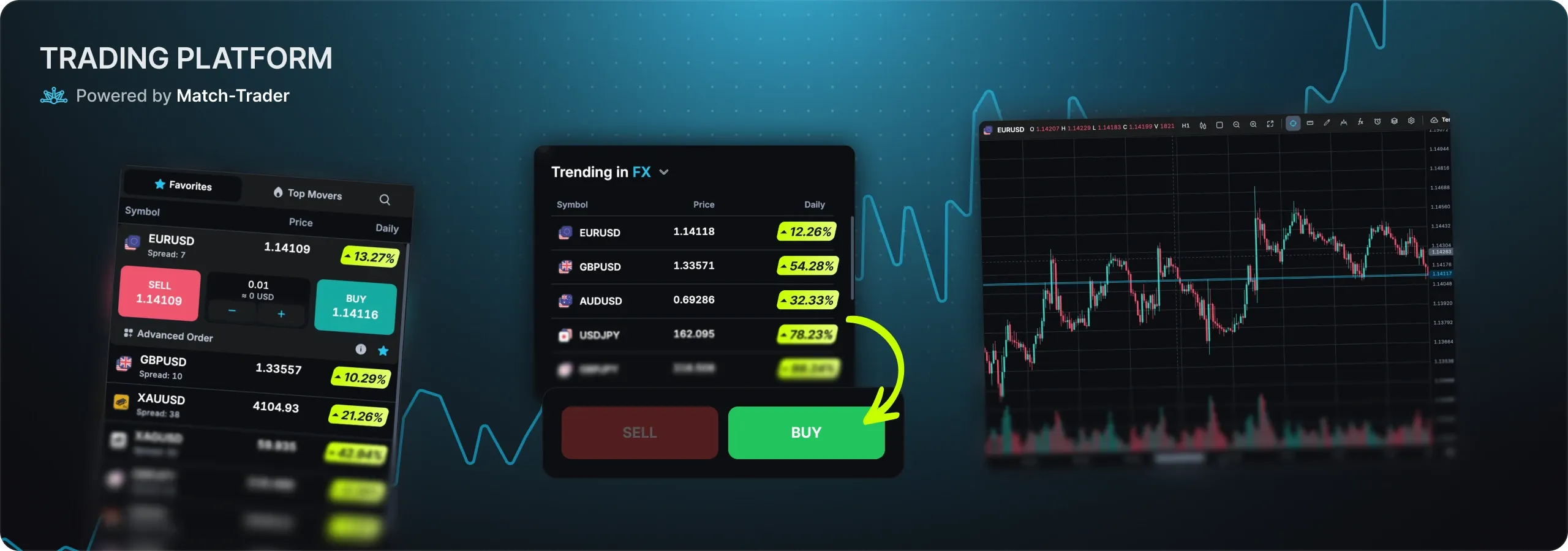
Pivex has two places you use every day. The dashboard is your account hub: it shows your Challenge objectives, your account status, your reward requests and Pivex Academy. The trading platform is where you place and manage trades. It runs on Match-Trader and opens straight from the dashboard.
- Dashboard
- app.pivex.com. Log in with your email and a 6-digit one-time code.
- Trading platform
- Opens inside the dashboard, already signed in, with the Trade Now button on an account or Trading Platform in the menu.
Add Pivex to Your iPhone Home Screen
- 1Open app.pivex.comUse Safari or Chrome on your iPhone.
- 2Log inEnter your email and the one-time code from your inbox.
- 3Tap the Share iconIt is the square with an arrow at the bottom of the screen.
- 4Choose Add to Home ScreenName the shortcut, for example Pivex Dashboard, and tap Add.
The Pivex icon now sits on your home screen and opens the dashboard with one tap, just like any other app.
Add Pivex to Your Android Home Screen
- 1Open app.pivex.comUse Chrome or another browser on your phone.
- 2Log inEnter your email and the one-time code from your inbox.
- 3Open the browser menuTap the three dots in the top right corner.
- 4Choose Add to Home screenName the shortcut and confirm with Add.
The trading platform opens from the dashboard, so one home screen icon is all you need.
Pivex on a Computer
On a computer, open app.pivex.com in Chrome, Firefox or Safari. The trading platform opens inside the dashboard, with no software to install, and works the same on Windows and macOS. Bookmark app.pivex.com or keep it pinned as a tab, so your account is always one click away.


